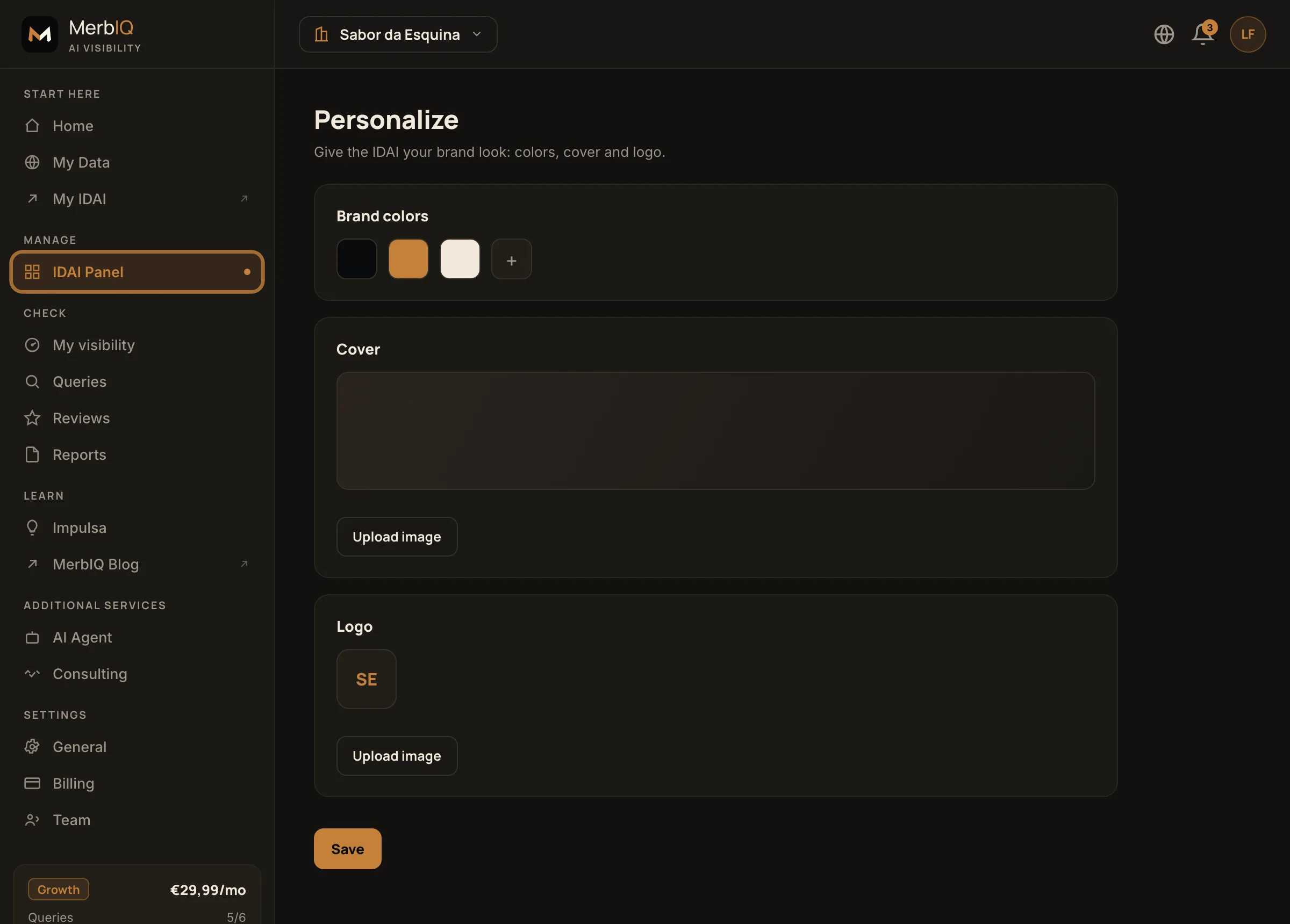
Your IDAI should look like yours, not a generic template. In Personalize you set your brand colors, the cover and the logo. It takes minutes and changes the whole feel of the profile.
Step by step
Brand colors
Pick your colors (your business's, not MerbIQ's). They paint the buttons and highlights of the IDAI.
Cover
Upload a good image for the header. It is the first impression for visitors, and what shows when you share the link.
Logo
Upload your logo. It appears on the profile and becomes the IDAI favicon (the little icon in the browser tab).
Use your brand colors, not MerbIQ's. An IDAI with your identity builds more trust and stays memorable.
Frequently asked questions
I do not have a professional logo
Start with what you have, even if it is simple. What matters is having an identity; you can swap it for a better one later.
What image should I use for the cover?
Something real and sharp from your business: the storefront, the space, a product. Avoid generic stock photos.