Everything about money in one place: your plan, the payment method and your invoices. No small print and no surprises at renewal.
Step by step
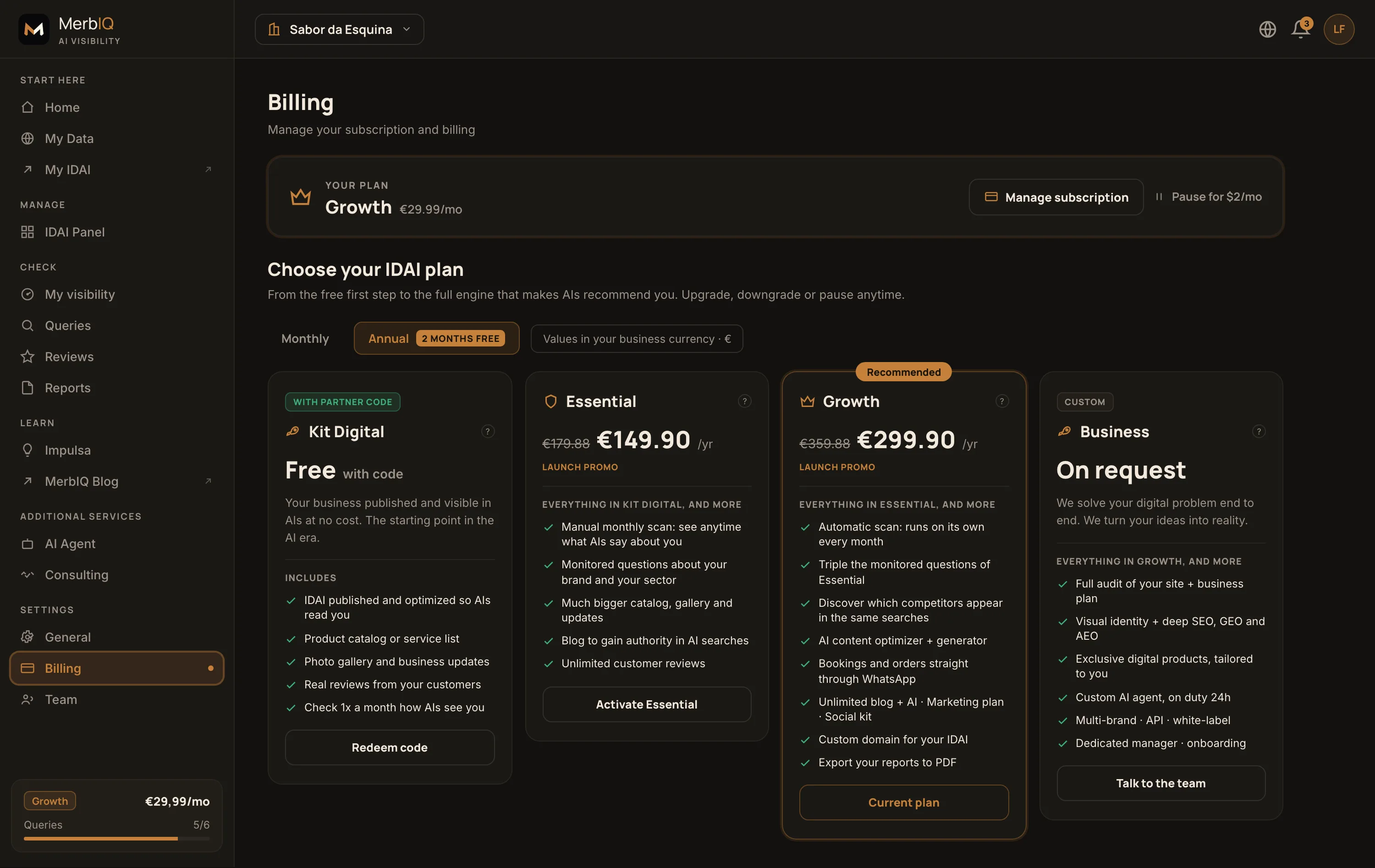
See your plan
The top card shows your current plan (e.g. Growth), the price and when it renews. Zero surprises at month end.
Change plan when you need
Tap Change plan to move up (more features) or down. Your data and your IDAI stay intact.
Manage the subscription
Manage subscription opens the secure payment portal: update the card, download invoices or cancel. We never see your card number.
Frequently asked
If I cancel, do I lose my IDAI?
The IDAI stops being public, but your data is kept. When you reactivate, everything comes back as it was.
Where do I download my invoices?
In Manage subscription, inside the payment portal. All your invoices are there, ready for your accounting.
How much does each plan cost?
Kit Digital is free with a code; Essential and Growth have a monthly or annual price (with 2 months free per year); Business is on request. The exact price in your currency is always up to date on the Pricing page, and the top card shows your current plan.